
Blog
How to Take a Screenshot on Lenovo Laptop 2021
0.3k words By Robert
The feature of taking pictures or screenshots of the laptop screen can be useful for various needs. You can take screenshots of your favorite web pages or movies that are plastered on your laptop.
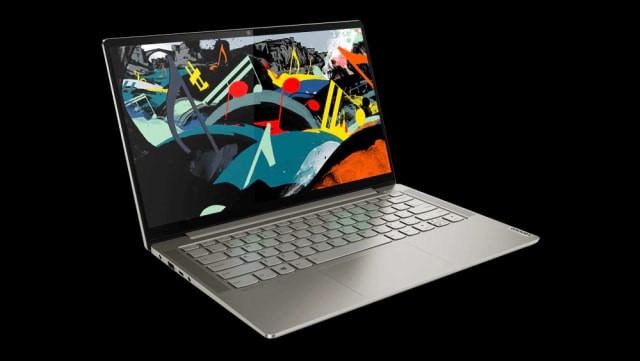
Taking screenshots works differently depending on the type of computer and the software running it. At Lenovo, there are a few different ways to do this, depending on the operating system whether it's Windows 10 or an earlier version of Windows. Know more Steam Screenshot Folder.
The following are the steps to screenshot on a Lenovo laptop based on Windows 10:
- Press the Windows key and the PrtSc (Print Screen) key on the keyboard at the same time. The screen will dim for a moment, and the image on the monitor will be saved in the Screenshots folder on your Lenovo laptop
- Another way to take a screenshot is to hold down the Windows key, then press the W key on your keyboard. A sidebar menu will appear on the right side of the screen. Select ScreenSketch from the menu and edit the image according to your taste. After the editing process, you can save the result by pressing the save feature. This method is very useful if you want to highlight or mark certain parts of the screenshot result.
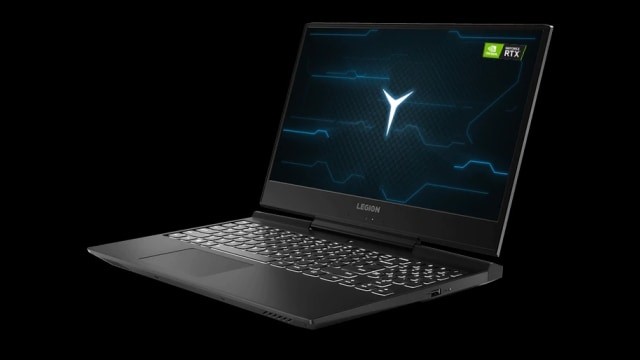
For Lenovo laptop owners whose operating system is not Windows 10, don't be discouraged. The screenshot function can still be done on your Lenovo laptop in the following ways:
- Press the PrtSc key on the keyboard to copy your screen image to the clipboard.
- Open Paint, or a similar application for pasting an image to see the resulting image in the program.
- Make edits according to your taste. Through the Paint program, you can mark images or even crop images according to taste
- Save the image by pressing Ctrl and S keys on the keyboard
Good luck!