
Blog
Why Two Built-In Windows 11 Services Are Secretly Holding Back Your PC’s Speed
0.6k words By Robert
Windows Search and Windows Update act like digital vampires, leeching CPU and RAM, slowing your PC to a crawl. With intensive indexing and frequent update checks, they can choke resources. As a techie might say, "More background services, less foreground performance." Users are left with a noisy fan and sluggish responsiveness. Could these built-in features be working against you? Tune them down and feel the surge in speed. Curious about other sneaky offenders?
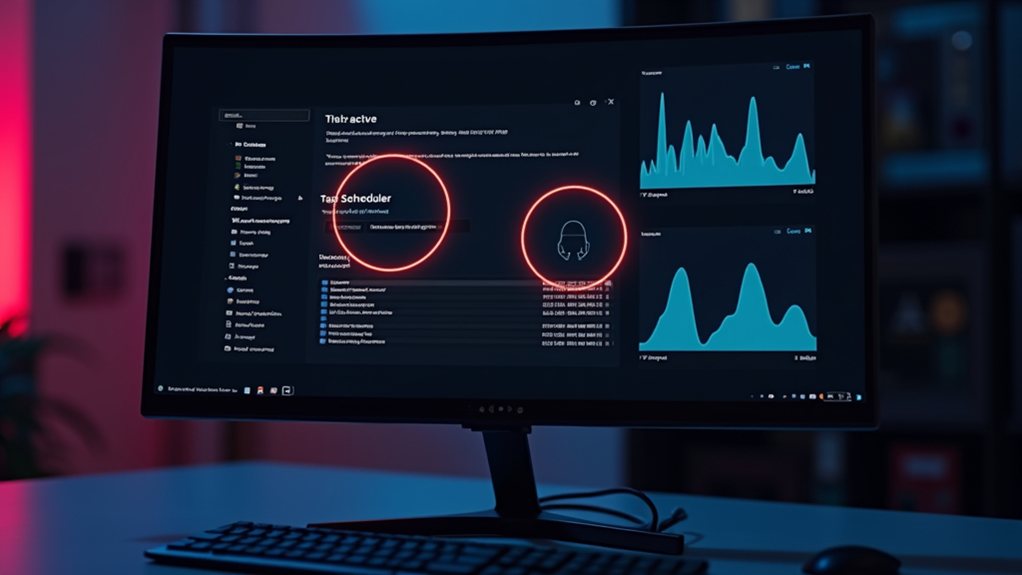
Ever wondered why your shiny new Windows 11 machine feels like it’s slogging through treacle? If you’re experiencing unexplained sluggishness, the culprits are likely the ever-intrusive Windows Search Service and the mysterious high CPU usage caused by Windows Update processes. These two built-in services might just be the hidden chains holding back your PC’s speed.
Windows Search indexes files and emails to help you find what you need faster than a toddler can say “where’s my snack?” However, during its indexing phases-especially after updates or when files change-it consumes significant chunks of your CPU and RAM. What does that mean for you? Think of your computer’s resources like a congested highway. The more cars (or processes) you have, the slower everything moves. Furthermore, Windows 11's enhanced memory management prioritizes foreground apps, which can be hindered during the heavy lifting of indexing activities. Disabling Windows Search can lead to better overall performance, especially for those who rarely utilize it.
If searching isn’t a priority for you, consider disabling Windows Search entirely. It’s as simple as stopping the service via services.msc and setting its Startup type to Disabled. However, take heed: If you don’t adjust the recovery settings to “Take no action,” the service could come creeping back-like that one friend who overstays their welcome.
But the situation doesn’t end there. After certain Windows updates, users report that the generic "Services" process spikes to 21-25% CPU usage. That's not just a headache for your system; it increases fan noise and distracts from productivity, making it feel like you’re working next to a jet engine. A key suspect in this saga is the ntkrnl.exe process-an underlying beast that you cannot simply switch off.
This issue has been widely observed post-update, suggesting a systemic problem rather than a one-off glitch. Unfortunately, typical troubleshooting steps-like clean boots and disabling startup items-often don’t yield results, leaving users frustrated.
In parallel, Windows is notorious for running numerous background services that seem harmless but end up consuming significant resources. Unbeknownst to many, Xbox-related services and unnecessary Windows Store packages might be wasting valuable CPU and RAM. Without a good service management tool, these hidden gremlins may impair the responsiveness of your system.
If you want to play systems administrator, proceed with caution: Disabling critical services could throw your system stability off balance faster than a game of Jenga at a family gathering.
Even the efforts to mitigate CPU vulnerabilities can backfire, causing freezes and performance lag. Some mitigations activate effortlessly in the background-think of them like that overprotective friend who checks up on you but sometimes unintentionally drains your energy.
Final Thoughts
As we explore the intricacies of Windows 11, it's crucial to understand how certain built-in services may be hindering your computer's performance. While these services aim to enhance user experiences, they can sometimes have the opposite effect. Home Computer Technician specializes in identifying and managing these services, helping you reclaim valuable performance and optimize your system. In a world where speed matters, every adjustment can make a difference. Don’t let these hidden obstacles hold your PC back; let us help you unlock its full potential. Ready to enhance your computer’s performance? Click on our contact us page to get in touch today!